Quote:
Originally Posted by dogbone

Yes, there's a way to do it.
In this first pic, I have two sessions up from two different AIM devices---an old original Solo DL and a newer Solo 2 DL. And like you, the Pedal Position charts appear as different data on two different charts. The place to change this setting is the little green square in the top right corner. I've circled it. In this first chart, if you click on that green square, you'll see the active option is set to "Set Plot Type to Tiled". (I've also highlighted over on the left side to show how the pages look different after a certain option is chosen below.)
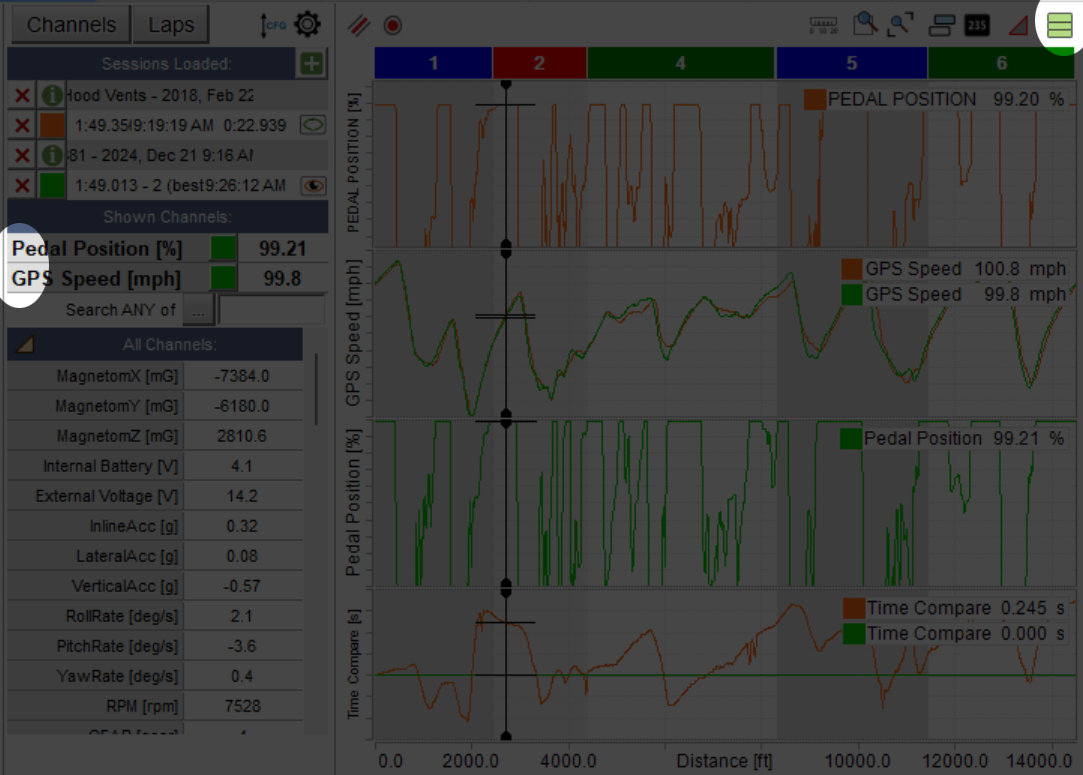
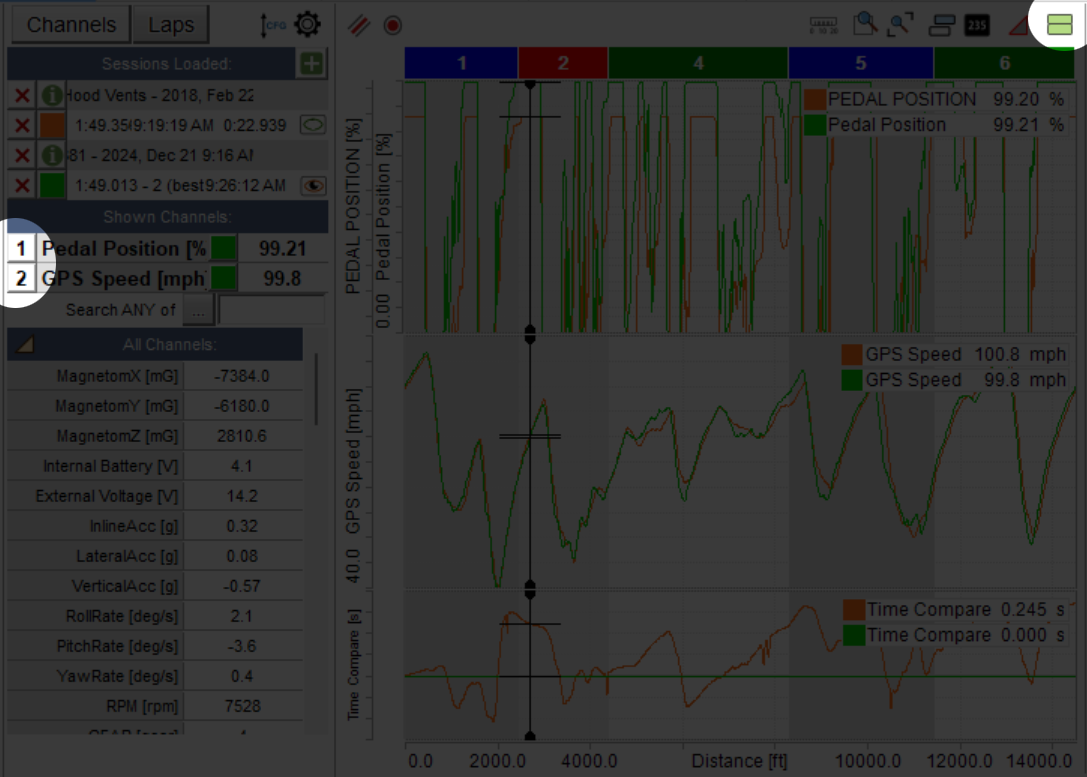
What you need to do is click back on that green block and select "Set Plot Type to Mixed". In this second photo, I have the Mixed option selected. And you can see that the two Pedal Position charts are overlapped. The way you get them to overlap onto the same chart is highlighted on the left side. Once you select the Mixed option, those numbers appear to the left of the Channel names. Clicking on those numbers increments the numbers from 1-6 (you can have up to 6 charts active). So, you need to click on the lap you want to control the chart on, click the number next Channel until they are the same for both parameters and they'll overlap.
 |
I love how completely unintuitive it all is. Thanks for the info!
__________________
Current '20 AG X7M50 (daily + track tow), M4 GTS (track), '21 X3 M40i (wife)
Recent Past '11 E90 M3 (track), '21 DG X5MC, '22 BG G82, '12 E92 M3 ZCP, '08 E93 M3, '18 F80 ZCP, '04 E46 M3
Cleaning out my garage --
stuff for sale